Which scripts need what
| Script | Does | Needs Python |
|---|---|---|
| CosmeticCorrection | Hot and cold pixel removal on the active view | No |
| LAcosmic | Cosmic ray removal, L.A.Cosmic (van Dokkum 2001) | Yes |
| DeepCosmicRay | Cosmic ray removal, deep learning (Zhang & Bloom 2020) | Yes |
Three steps, about five minutes. If you only want CosmeticCorrection, you are done after step 2.
LAcosmic and DeepCosmicRay drive Python through a shell wrapper, so they run on macOS and Linux. CosmeticCorrection runs everywhere PixInsight does.
1Add the repository
In PixInsight, open Resources > Updates > Manage Repositories, click Add..., and paste this URL:
https://bb-astro.github.io/BB-Astro_Repository/
Click OK. You only ever do this once.
2Install the scripts
Go to Resources > Updates > Check for Updates. The BB-Astro scripts appear in the list. Select the ones you want, click Apply, then restart PixInsight.
They land under Script > BB-Astro.
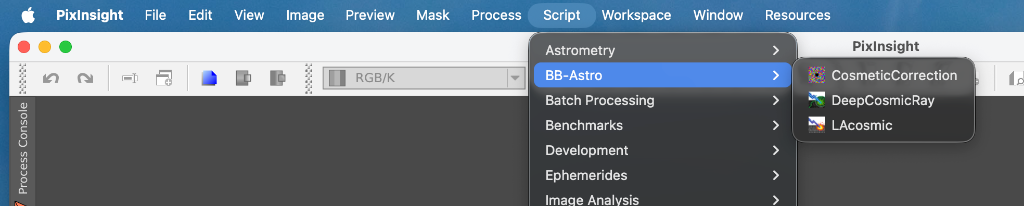
PixInsight will tell you about updates from now on. To check by hand: Resources > Updates > Check for Updates.
3Let the script set up Python
Skip this if you only installed CosmeticCorrection.
Just open an image and launch LAcosmic or DeepCosmicRay.
Each one checks its Python environment before opening. If it is missing, it asks whether to build it. Click Set up now and watch the progress in the PixInsight Console. You can abort from there. There is nothing to type and no Terminal involved.
LAcosmic takes under a minute. DeepCosmicRay downloads about 850 MB, almost all of it PyTorch, so give it a few minutes on a normal connection. Once it says Setup complete, the dialog opens and you can process your image.
I would rather run it from a Terminal
Same script, run by hand:
bash /Applications/PixInsight/src/scripts/BB-Astro/install_lacosmic.sh
bash /Applications/PixInsight/src/scripts/BB-Astro/install_deepcr.sh
On Linux the path is /opt/PixInsight/src/scripts/BB-Astro/ by default. Add
--yes to skip the prompts.
Why not just pip3 install?
Because it does not work, and that is not a matter of taste.
Homebrew and most Linux distributions mark their Python as
externally managed (PEP 668) and refuse to install anything into it. The packages have to
live in a virtual environment, which is what the setup script creates, under
~/.bb-astro.
DeepCosmicRay adds a second constraint: it needs
Python 3.10 or 3.11, and both ends are hard. PyTorch requires 3.10 or
later. deepcr is published as source only, and its build script breaks on 3.12 and
above. So a plain pip3 install deepcr on a current system Python fails outright.
The setup script finds a suitable interpreter, and can fetch a standalone CPython 3.11 through
uv if you have it.
If it cannot find one, install it and run the setup again:
macOS
brew install python@3.11
Debian / Ubuntu
sudo apt install python3.11 python3.11-venv
Did it work?
The script tells you when it opens: the Console shows
Python OK followed by the interpreter it will use. If the dialog opens, you are set.
To check from a Terminal without launching PixInsight:
bash /Applications/PixInsight/src/scripts/BB-Astro/run_deepcr.sh --probe
It prints the interpreter that would actually run, or explains what is
missing. Same thing with run_lacosmic.sh.
When something goes wrong
-
The scripts are not in the Script menu
Restart PixInsight. The updater extracts the files but the menu is only rebuilt at startup. -
"The Python environment is not set up yet"
Click Set up now. If you dismissed the dialog, just launch the script again. -
Setup fails, "externally-managed-environment"
That message comes frompiprefusing to touch a system Python (PEP 668). It should not appear when using the setup script, which builds its own environment. If you see it, you ranpip3by hand. -
Setup fails, "'Constant' object has no attribute 's'"
Your Python is 3.12 or newer anddeepcrcannot build on it. Install Python 3.11, then run the setup again. -
Still stuck
Run the--probecommand above and open an issue with what it prints on GitHub. It says exactly which interpreters were tried.